Installing LocalSend on Windows lets you transfer full-resolution photos, 4K videos, and project folders between Android, iPhone, and your desktop PC over local Wi-Fi without USB cables or cloud storage limits. Transfers stay strictly inside your local network using encrypted HTTPS endpoints and require zero user accounts.
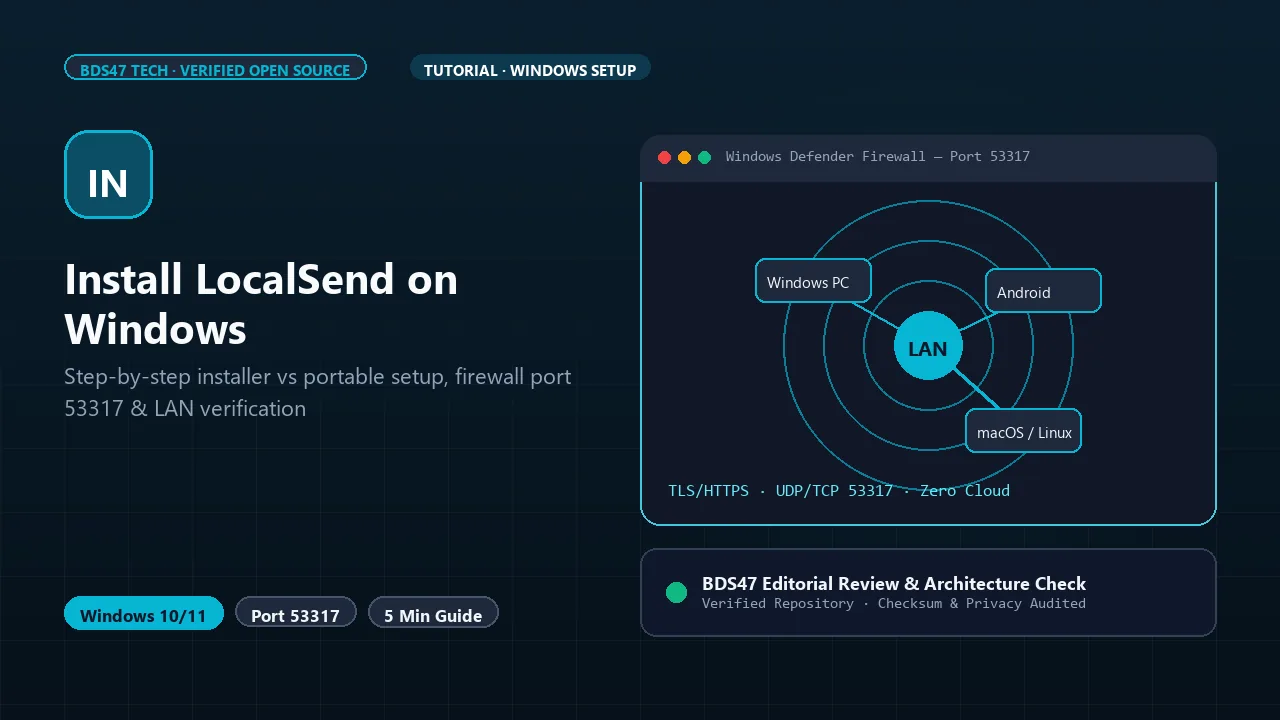
Quick Answer: To install LocalSend on Windows and send files between your phone and PC, download verified release v1.18.2 from localsend.org or GitHub Releases (Apache-2.0), install the app on both devices, set your Windows Wi-Fi profile to Private, and allow port 53317 TCP/UDP through Windows Firewall.
1. Network Prerequisites & Official Download Sources
Before installing any LAN transfer utility, verify the publisher source on GitHub and confirm that both devices share the same local subnet. The lightweight background listener uses minimal system RAM (~40 MB) while discovering peers via multicast UDP and transmitting payloads over port 53317 HTTPS.
- Use official binaries only: Download the Windows installer (.exe or portable .zip) strictly from localsend.org or official GitHub Releases.
- Prepare the mobile companion app: Install the matching build on Android (Google Play or F-Droid) or iOS/iPadOS from the Apple App Store.
- Pause full-tunnel VPNs: Active VPN clients without LAN bypass block local multicast discovery packets between nearby devices.
2. Installing on Windows and Configuring the Firewall
You can run the graphical setup wizard or execute the official winget package command in PowerShell to pull the signed upstream release and verify SHA-256 integrity automatically:
winget install --id LocalSend.LocalSend -e
# Verify active Windows network profile before launching
Get-NetConnectionProfile- Open Windows Settings → Network & internet → Wi-Fi and switch the active network profile to Private network so peer discovery is permitted.
- When Windows Defender Firewall prompts on first launch, grant permission exclusively for Private networks rather than Public networks.
- Open the in-app Settings tab to customize your device alias, confirm port 53317 binding, and set a dedicated Downloads destination folder.
3. Transferring Files Between Phone and PC
Once both devices are open on the same wireless router or wired switch, bidirectional transfers complete in seconds with end-to-end TLS encryption and zero image compression:
- Select files on your phone or PC: Open the Send tab and pick RAW photos, 4K videos, documents, or entire folders—or trigger the native iOS/Android Share sheet directly from your gallery.
- Pick the target peer: Wait a few seconds for the receiving computer alias to appear under Nearby Devices, then tap to initiate transfer.
- Approve on the receiving device: Review the incoming file count, total byte size, and sender name, then click Accept to write directly to disk.
- Optional Quick Save for personal hardware: On trusted home networks, add your own devices to Favorites with Quick Save enabled to skip repetitive acceptance prompts.
Handling Multi-Gigabyte Folder Transfers Reliably
When moving thousands of small files or multi-gigabyte video archives, wiring the Windows workstation over Gigabit Ethernet while keeping the phone on 5 GHz Wi-Fi eliminates half-duplex wireless contention and maintains steady throughput.
4. Troubleshooting Discovery & Throughput Issues
| Common Symptom | Root Cause | Recommended Fix |
|---|---|---|
| Devices do not appear in Nearby list | Windows Wi-Fi is set to Public or router enforces AP/Client Isolation. | Switch Windows profile to Private Network and disable guest AP isolation. |
| Transfer speed stalls below 5 MB/s | Devices are connected over congested 2.4 GHz Wi-Fi. | Move both devices to 5 GHz Wi-Fi or wire the Windows desktop via Gigabit Ethernet. |
| Large iOS batches pause midway | iOS suspends background tasks if the screen locks during big queues. | Enable keep-screen-awake inside app settings or zip large folder trees first. |
| Devices sit on separate VLANs | Multicast UDP discovery does not cross subnet boundaries. | Use direct local IP address entry or numeric pairing PIN inside Send tab. |
5. Related Engineering Guides & Reviews
Explore deeper encryption specs and cross-platform benchmarks in our full LocalSend software review, compare workflows in LocalSend vs KDE Connect, or browse more vetted tools inside the Windows open-source software catalog.