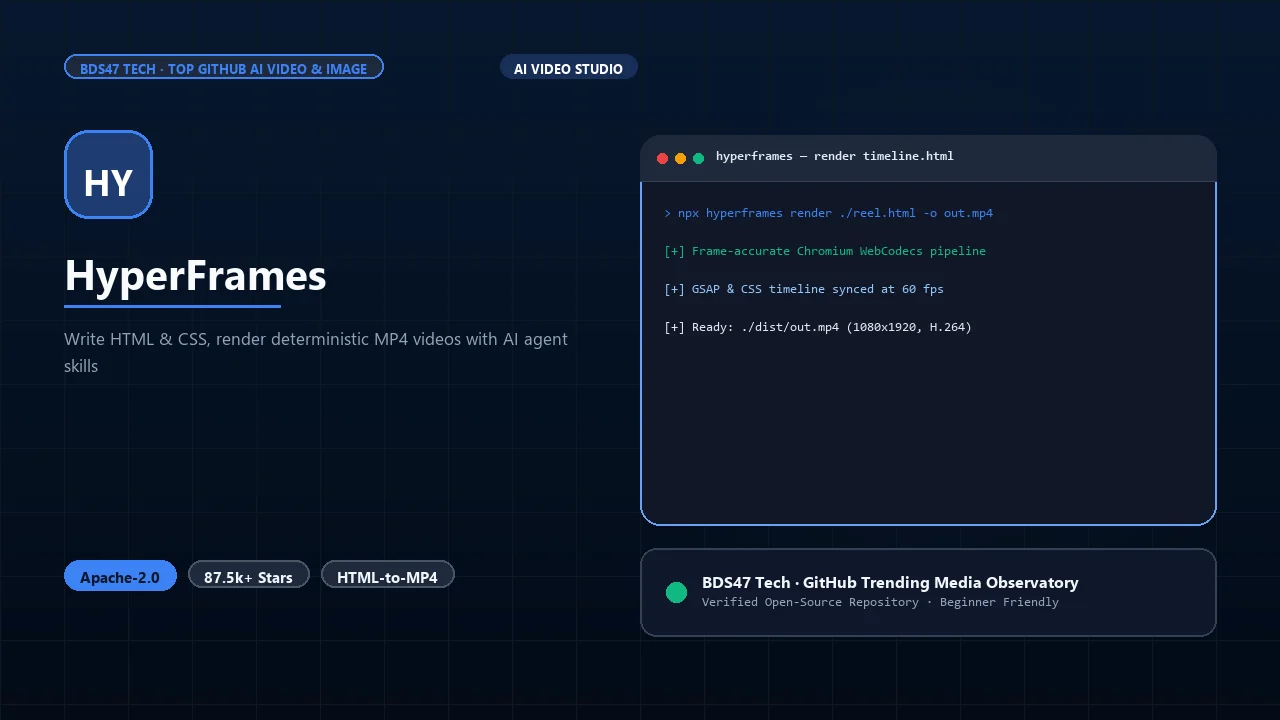
HyperFrames has surged past 87,500 GitHub stars this week by turning a surprisingly simple idea into an open-source video powerhouse. Instead of wrestling with complex timeline editors, creators write familiar HTML and CSS animations and render them directly into frame-accurate MP4 videos.
What pushed HyperFrames to the top of developer feeds is seamless compatibility with modern coding agents like Claude Code, Codex, and Cursor. Beginners and marketers can describe scenes in plain English, let an agent author the animated webpage, and render crisp 1080p clips locally for free.
1. What is HyperFrames? Plain-English Guide for Beginners
Quick Answer for Beginners: Think of HyperFrames as a virtual camera that captures every millisecond of a moving webpage and stitches the frames into an MP4 file. It runs locally on Node.js across Windows, macOS, and Linux under an Apache-2.0 license without expensive GPUs or monthly subscriptions.
1.1 How HTML-to-Video Works Without Traditional Editing
Normally, when you animate text, charts, or UI mockups in a browser, playback speed depends on your computer’s live load. HyperFrames solves this by stepping a virtual clock forward one frame at a time, capturing crisp pixels at exact intervals.
Because every frame is synchronized mathematically before encoding, slow laptops produce the exact same silky-smooth 60 fps output as high-end desktops without dropped frames or screen-recording artifacts.
1.2 Architecture Under the Hood (Chromium WebCodecs & Agent Skills)
Internally, the engine combines headless Chromium rendering with GSAP timelines and WebCodecs / FFmpeg encoding. You can run a live preview command in your browser to tweak colors or timing before rendering the final MP4.
Beyond the open-source CLI and desktop studio app, the repository includes pre-packaged Agent Skills so AI assistants can write compositions and inspect rendered frames automatically.
2. Hardware Requirements & System Profiles
Unlike heavy generative video models that demand 16 GB or more of NVIDIA VRAM, HyperFrames renders web graphics on standard CPUs, making it accessible on everyday laptops and Apple Silicon Macs.
| Profile | CPU / GPU | Minimum RAM | Runtime Stack | Expected Experience |
|---|---|---|---|---|
| Starter (Beginners) | 4-core CPU (Intel i5 / Apple M1) | 8 GB RAM | Node.js >= 22 + Chromium | Smooth 1080p motion graphics & UI promos |
| Creator Workstation | 8-core CPU + integrated/discrete GPU | 16 GB RAM | Node.js 22 + FFmpeg | Fast multi-scene 60 fps MP4 rendering |
| Headless Cloud / Docker | 4 vCPU Linux x64 or ARM64 | 8–16 GB RAM | Docker Container CLI | Automated batch video rendering via pipelines |
Choosing Export Resolution, Frame Rate & Storage Layout
For mobile-first vertical feeds such as TikTok, Reels, and YouTube Shorts, target a 1080×1920 canvas at 30 frames per second before stepping up to 60 fps. Cutting frame rate in half slices total headless Chromium capture steps dramatically while keeping kinetic typography smooth and legible across small phone screens.
Keep project assets—custom SVG charts, product screenshots, and WebM video overlays—organized inside a clean local folder so the local server reads directly from fast NVMe storage rather than waiting on external network CDNs during deterministic frame captures.
3. Step-by-Step Beginner Installation Guide
Getting started takes less than two minutes. First install Node.js version 22 or newer from nodejs.org on Windows, macOS, or Linux, then open your Terminal or PowerShell window.
Step 1: Initialize a Sample Video Project and Live Preview
Run the commands below to scaffold a starter composition and launch the browser preview server. You can edit the generated HTML file in any text editor and watch updates immediately.
If you see a permission prompt when downloading Chromium for headless capture on macOS or Windows Defender SmartScreen, allow local execution so the preview and export binaries can start a local loopback server.
npx hyperframes init my-video
cd my-video
npx hyperframes preview
Step 2: Render Final MP4 & Connect Optional AI Skills
Once your timing and typography look right in the preview window, run the render command to output your H.264 MP4 file. Coding agent users can also install the official skill bundle with one line.
After rendering finishes, inspect the generated file inside your distribution directory to confirm audio levels, safe text margins, and color contrast before publishing directly to YouTube, LinkedIn, or product landing pages.
npx hyperframes render
# Optional AI coding agent integration:
npx skills add heygen-com/hyperframes
4. Four Practical Workflows You Can Build Today
Because web browsers excel at crisp typography, grids, and SVG charts, this programmatic approach outperforms traditional video editors across several common business workflows.
4.1 SaaS Product Walkthroughs & App Launch Promos
Embed clean screenshots or live UI cards inside animated browser mockups, complete with smooth cursor highlights and feature callouts ready for Product Hunt or social feeds.
4.2 Data-Driven Reels, Financial Charts & News Recaps
Feed live JSON metrics directly into styled HTML templates to generate consistent daily market updates, leaderboard animations, or educational YouTube Shorts without manual re-typing.
4.3 AI-Authored Explainer Videos via Coding Agents
Pair the open-source CLI with Claude Code or Cursor to convert blog posts or technical READMEs into structured multi-scene motion slides complete with synchronized voice tracks.
4.4 Self-Hosted Personalized Video Pipelines in Docker
Because the core engine is Apache-2.0 licensed and runs headless, engineering teams can wrap it inside microservice queues to render personalized customer recaps on private servers.
5. Honest Pros and Cons Before Installing
Knowing exactly where programmatic HTML rendering shines versus where traditional tools fit better helps you avoid unnecessary setup.
Key Advantages
- Permissive Apache-2.0 License: Free for commercial videos, client work, and internal SaaS pipelines without forced watermarks.
- Razor-Sharp Typography: Native browser font rendering eliminates blurry AI-generated letters across any language.
- Instant Global Edits: Update a number, brand color, or CTA once and re-render cleanly every time.
- Agent-Native Tooling: Purpose-built skills let AI assistants inspect and fix layout issues before exporting.
Limitations to Keep in Mind
- Not a Photorealistic Text-to-Video Diffusion Model: It composes code, images, audio, and video clips rather than hallucinating live-action camera footage.
- Requires Node.js 22+: Complete non-technical beginners may prefer the downloadable Studio Desktop installer over Terminal commands.
- Heavy CSS/WebGL Filters Take Longer on CPU: Complex real-time shaders can slow software rendering down on older dual-core laptops.
6. Comparing HyperFrames vs Remotion and CapCut
This comparison matrix highlights licensing, technical barriers, and AI workflow fit across three popular video creation approaches.
| Dimension | HyperFrames | Remotion | CapCut Desktop |
|---|---|---|---|
| Authoring Model | Plain HTML, CSS, JS + Agent Skills | Requires React & TypeScript components | Manual drag-and-drop timeline editing |
| Cost & License | Apache-2.0 (free commercial CLI) | Free for individuals; paid company license | Freemium with paywalled Pro effects |
| AI Agent Reliability | Very high with vanilla web markup | Good, though bundler errors can occur | Not scriptable by coding agents |
| Ideal Use Case | UI promos, data reels, automated clips | Full React video engineering apps | Hand-edited vlogs & casual camera cuts |
Choosing between programmatic web video engines and visual editors comes down to repeatability. If you publish dozens of structured leaderboard clips, product feature updates, or metric recaps every month, templating once in HTML cuts future editing time from hours down to seconds per render.
Conversely, when editing raw camera footage with spontaneous cuts and hand-drawn doodles, visual timeline apps still win on immediate intuition. Many creators combine both by rendering crisp animated overlays locally and dropping those clean MP4 elements into longer edits.
7. Frequently Asked Questions (FAQ) for Beginners
7.1 Can I use it if I do not know how to code HTML or CSS?
Yes. You can download the free desktop Studio app for Windows, macOS, or Linux, or ask an AI assistant to generate simple starter HTML files that you preview and render locally.
7.2 Does it require an expensive NVIDIA graphics card?
No. Rendering runs through Chromium and FFmpeg on standard CPUs, so Apple Silicon MacBooks and typical 8 GB Windows laptops handle 1080p projects comfortably.
7.3 Can I combine background music, voiceovers, and existing MP4 clips?
Yes. Standard HTML5 audio and video elements are supported inside scenes and mixed automatically into your exported MP4 soundtrack.
7.4 Can I monetize exported videos on YouTube or TikTok?
Yes. The core rendering framework uses the Apache-2.0 license, allowing full commercial publishing without attribution banners or revenue sharing.
8. BDS47 Tech Verdict: Who Should Try It First?
HyperFrames earns a 9.3 / 10 editorial score for turning universal web standards into a reliable, AI-ready video rendering engine. Anyone creating software demos, data-driven explainers, or automated marketing reels will appreciate how cleanly text renders and how easily AI agents drive the workflow.
Before starting a full production pipeline, explore companion local media generators in our catalog below so you can pair sharp web typography with open-source image upscaling and background visuals.